
67 Speed Camera Not Working: Fixes and Checklist
Troubleshoot camera permission, browser settings, device issues, lighting, and tracking problems in 67 Speed.
Jun 26, 2026
Quick Camera Checklist
If 67 Speed cannot access your camera, start with the simplest checks:
- Make sure the browser has camera permission for 67speed.net.
- Close other apps that may be using the camera.
- Refresh the page after changing permission.
- Try a modern browser such as Chrome, Edge, or Safari.
- On mobile, make sure the browser app itself has camera permission in system settings.
Browser Permission Fixes
Chrome and Edge
Open the site, click the lock or permission icon near the address bar, and allow camera access. Refresh the page after changing the setting.
Safari on iPhone
Check iOS Settings, then Safari, then Camera. You may also need to allow camera permission for the specific website.
Android Browsers
Check both browser permission and site permission. If camera access was blocked once, the site may keep that setting until you change it manually.
Tracking Works, But Score Looks Wrong
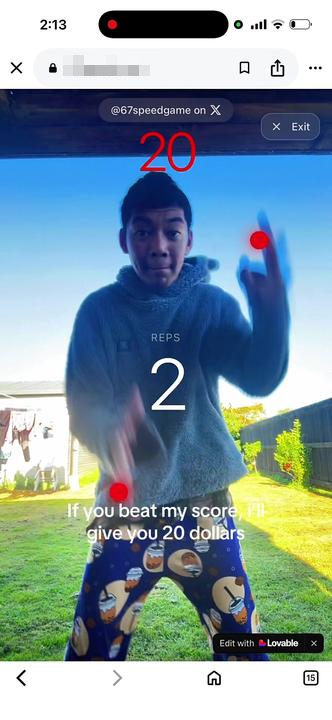
If the camera opens but your score looks too low, the issue is often visibility rather than permission.
- Use brighter front lighting.
- Move farther back so both wrists stay in frame.
- Stabilize the phone or laptop.
- Avoid dark clothing against a dark background.
- Keep your movement clear instead of extremely tiny.
Privacy Note
67 Speed uses the camera for live pose detection. The game does not need to upload or store your video to calculate a score.